Tags & metadata
A good filename carries the words you will search for. Some things do not belong in the name, though: a status, a client, a broad category. nymos can add those as Finder tags at the same time as it renames, so the file is easier to find without the name getting long. It is off by default; one switch turns it on.
Names vs tags
The split is simple. The filename holds the few words you would type to find the file and that travel with it anywhere. Tags hold the extra classification: a workflow stage, a project label, a document category that is useful to filter by but would only clutter the name.
Native to macOS
These are ordinary Finder tags, not a private database. That means they show up in Finder's colored tags, in the sidebar, and in Spotlight and Finder search, and they stay with the file the way any Mac tag does. nymos writes them; macOS does the finding.
You still review
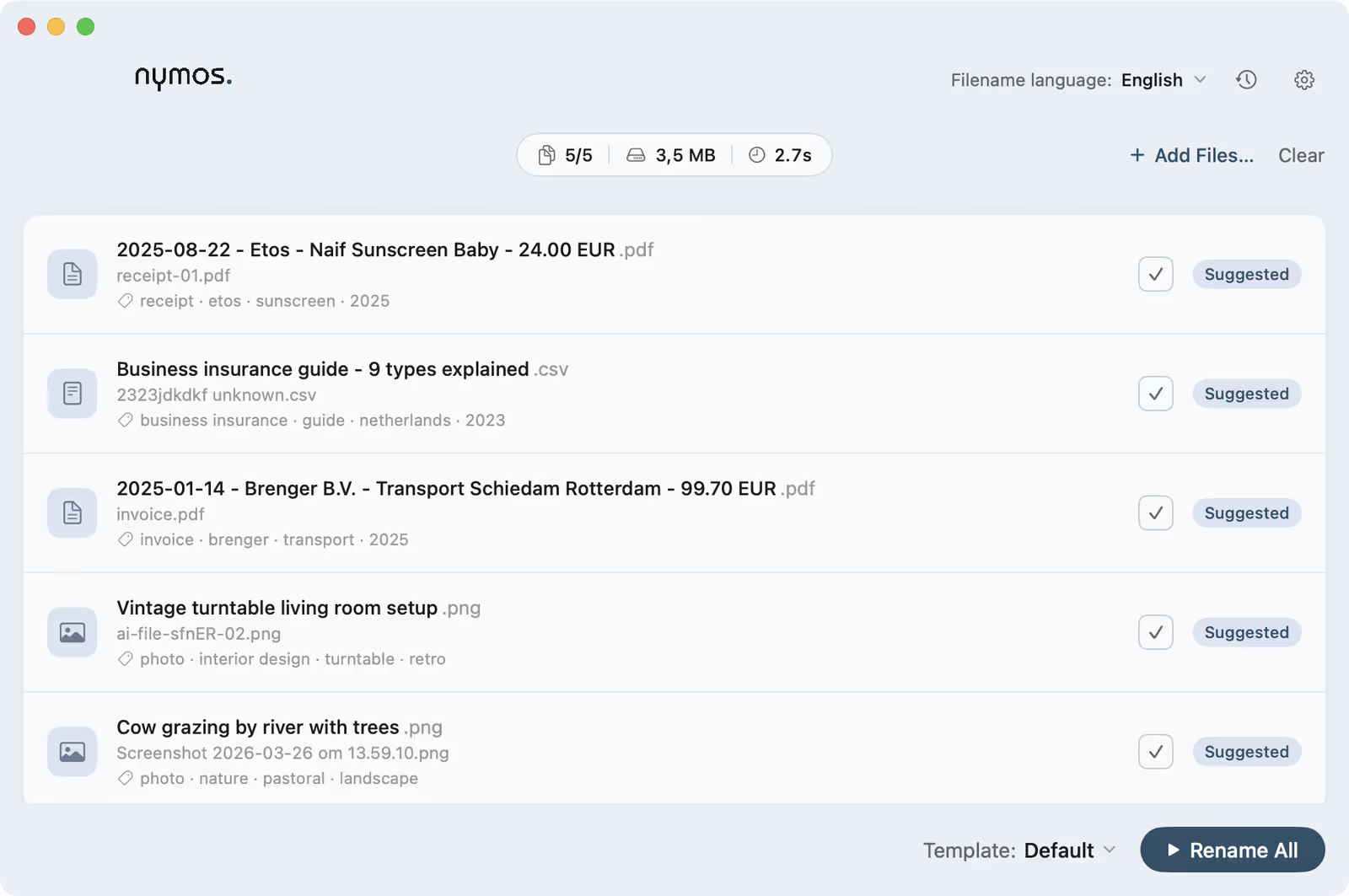
Tags follow the same rule as names: they are suggested, not imposed. They are written when you apply the rename, merged with any tags the file already carries, so your own tags are never replaced. Turning the switch off leaves you with just the filename; nothing is added to a file behind your back.
One switch in Settings
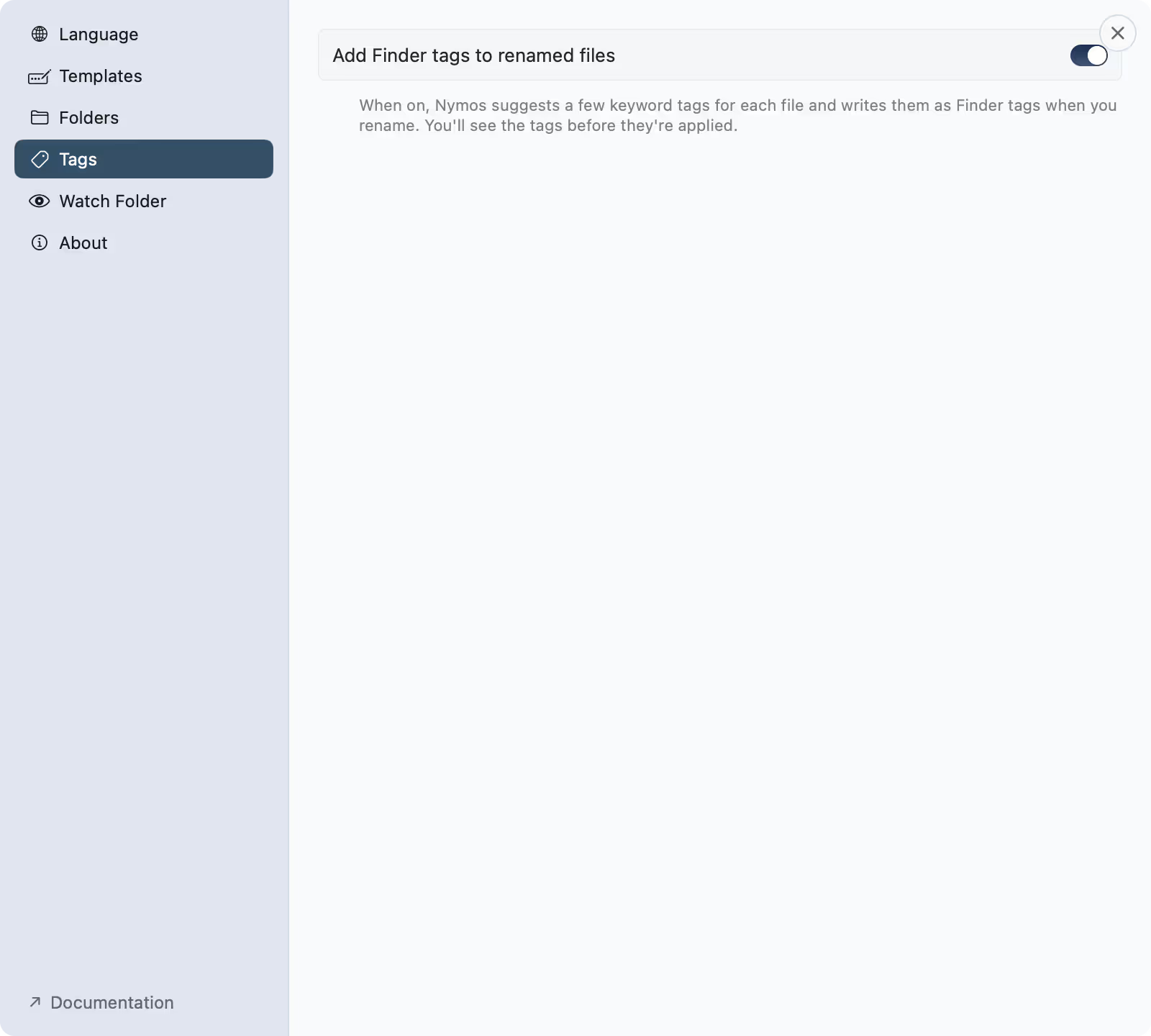
Settings ▸ Tags has a single toggle: Add Finder tags to renamed files. With it on, nymos suggests a few keyword tags for each file and writes them as Finder tags when you rename, and you see the tags on each row before you apply.
Tags on every row
With the switch on, each file in the main window shows its suggested tags under the proposed name. Apply the rename and the tags are written as Finder tags in the same step.