
Use your own AI provider
Self-managed is the second way to run nymos. Instead of a monthly plan, you buy the app once and connect your own AI provider account. Renames through nymos are then unlimited, and you pay your provider directly for what you actually use.
You may know this arrangement as BYOK, for "bring your own key". nymos calls it self-managed, because a local model needs no key at all and the name should still fit, but it is the same idea: the account doing the work is yours.
The license is a one-time purchase. The provider account is separate, yours, and billed by them.
What you need
- The self-managed license: a one-time purchase, either inside the app or from the pricing section on our homepage.
- An account with one AI provider: any one of the nine below, or any endpoint that speaks the OpenAI API. One is enough.
- Credit: keys only work once the account can be charged.
Set it up
- Buy the license. in the app, or on the website. A website purchase puts a license key on your receipt; enter it in the app under "Already purchased? Enter your license key". An in-app purchase activates on its own.
- Open Settings ▸ AI. and pick your provider from the first dropdown.
- Pick a model. or keep the default, which is the everyday choice for that provider. The card below the dropdowns tells you what the model you selected can read.
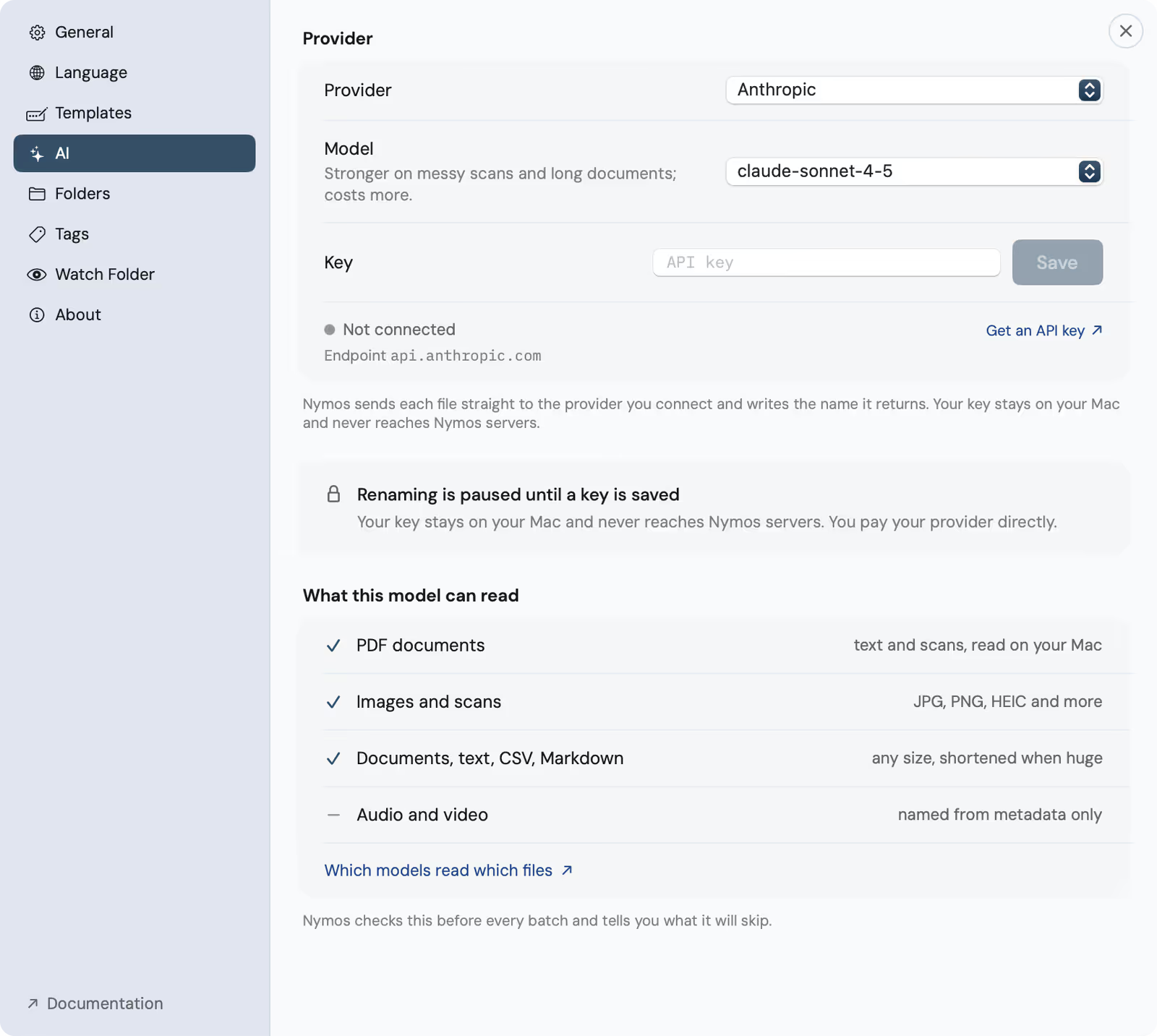
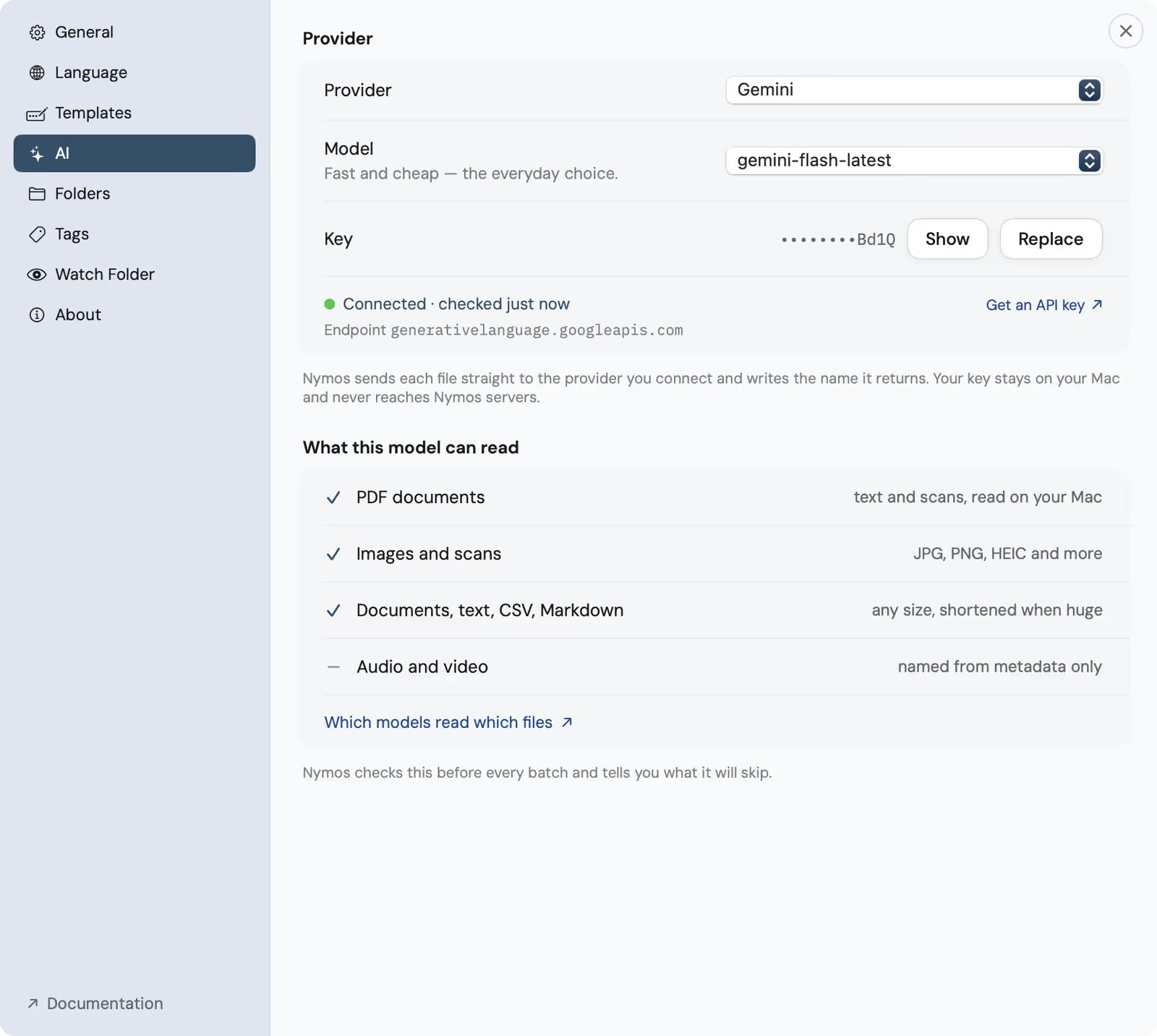
- Paste your API key. and save. nymos checks it there and then, and the row turns to "Connected". Your key stays on your Mac and never reaches our servers.
- Run a small batch. on a few test files to confirm everything works before you point it at a real folder.
Adding a key
Until a key is saved, renaming is paused rather than silently failing. Every provider keeps its own key, so switching back and forth later does not mean pasting again.
Connected
Once the key checks out, the pane shows which endpoint it talks to and exactly what the model you picked can read.
Where to get a key
Each provider's console is a little different, but the shape is always the same: sign in, create a key, copy it once, add billing if the account has none. nymos links straight to the right page for whichever provider you selected.
- Anthropic: console.anthropic.com/settings/keys
- OpenAI: platform.openai.com/api-keys. An API account is separate from a ChatGPT subscription, which includes no API credit.
- Gemini: aistudio.google.com/apikey. A generous free tier makes this a good first provider to try.
- Grok: console.x.ai
- Qwen: modelstudio.console.alibabacloud.com
- GLM: z.ai
- DeepSeek: platform.deepseek.com/api_keys
- Kimi: platform.moonshot.ai/console/api-keys
- OpenRouter: openrouter.ai/settings/keys. One key for many models, handy if you want to try several without an account at each provider.
Any other service that speaks the OpenAI API works too: choose "Custom endpoint", give nymos the base URL and the model id, and paste the key.
What is prepared on your Mac
All of the reading happens locally, before a single byte goes to a provider. That is what makes the next section so short: documents work with every model, images do not.
- PDFs: the text layer is pulled out directly. A PDF that is really a scan has no text layer, so macOS reads it with on-device OCR and the result travels as text.
- Office, OpenDocument and iWork: Word, Excel, PowerPoint and the OpenDocument equivalents are unpacked and read as text. Pages, Numbers and Keynote are read through the preview each document carries; when that preview has no text layer, the first page travels as a picture instead.
- Text, CSV and Markdown: read as they are, shortened when a file is very large.
- Images: converted to a standard JPEG and sent as a picture. This is the one path that needs a model which can see.
- Audio and video: named from the details the file carries. Video that macOS can decode also contributes one frame, which is a picture and follows the image rule above.
What that means per file type
Split by how a file reaches the model, which is the only thing your choice of provider actually changes.
Every provider
40 of 57 formats
- Documents 12
- Text & data 15
- Audio 7
- Video 6
Extracted on your Mac, including OCR for scans, and sent as plain text. The model never has to understand the original file format, so every provider in the table below handles all of these.
Only models that read images
17 of 57 formats
- Images 17
A photo or a scan has to arrive as a picture, and so does the single frame nymos takes from a video, or an iWork file whose built-in preview has no text layer. A model that can't see gets none of them.
The full extension list behind these counts is on Supported file formats.
Which models read which files
Every provider nymos can connect to, the models it offers for each, and whether those models can read a picture. Defaults are marked; the default is always the everyday choice rather than the most expensive one.
| Provider | Models in the app | Reads images? |
|---|---|---|
| Anthropic | claude-haiku-4-5 (default), claude-sonnet-4-5 | Both |
| OpenAI | gpt-5.1 (default), gpt-5-mini | Both |
| Gemini | gemini-flash-latest (default), gemini-pro-latest | Both |
| Grok | grok-4 (default), grok-3-mini | grok-4 only |
| Qwen | qwen-vl-max (default), qwen-max | qwen-vl-max only |
| GLM | glm-4.5v (default), glm-4.6 | glm-4.5v only |
| DeepSeek | deepseek-chat (default), deepseek-reasoner | Neither |
| Kimi | kimi-latest | No |
| OpenRouter | the model id you type | Treated as no |
| Custom endpoint | the model id you type | Treated as no |
Gemini uses the "-latest" aliases on purpose: Google retires numbered model versions for new accounts, and the aliases keep tracking the current generation. For OpenRouter and a custom endpoint nymos cannot know what you typed, so it assumes the model cannot see rather than risk inventing a name for a picture it never read. The same split seen from the file's side is on Supported file formats.
What happens to a picture a model can't read
It is skipped, and you are told twice. Before a batch starts, nymos counts the files that need a model which can see and asks whether to go ahead without them. Afterwards the skipped rows are labelled in the list, so the result is never quietly incomplete.
Nothing is guessed. A text-only model handed a photo will happily produce a confident, wrong name, which is exactly the outcome the skip is there to prevent. Your files are left with the names they already had.
Picking a model
- Mostly documents, invoices and scans: any provider in the table works. The cheaper default of whichever provider you already have an account with is the sensible choice.
- Photos, screenshots or camera scans in the mix: pick a model marked as reading images. Anthropic, OpenAI and Gemini read them on both of their models, so there is nothing to get wrong.
- A custom or OpenRouter model that can see: nymos still skips images, because it has no way to verify the claim. Connect the provider directly if you need pictures read.
What it costs
A rename sends a small amount of extracted text, or a downscaled image for photos and scans, and gets a short name back. Prices move, but with current mainstream models a typical document rename costs well under a cent, and even image-heavy batches stay inexpensive. Check your provider's dashboard after a first batch; the numbers are usually reassuringly small.
Coming from a subscription
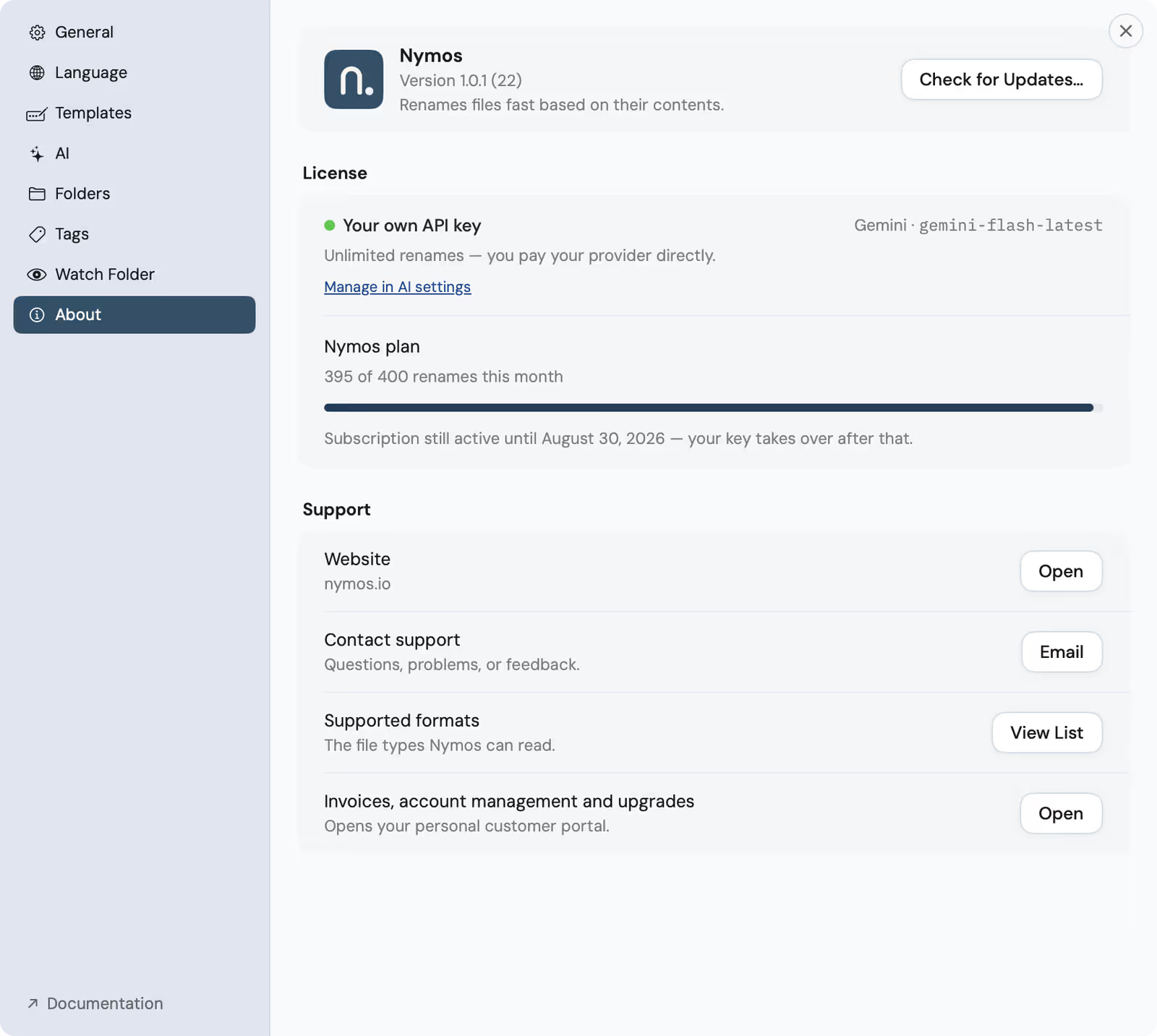
Buying the lifetime license while a nymos plan is running does not cut the plan off. It keeps running to the end of the period you have already paid for, and until then your remaining plan renames sit behind your own key as a safety net. After that date, your key takes over entirely.
Knowing whose key you are on
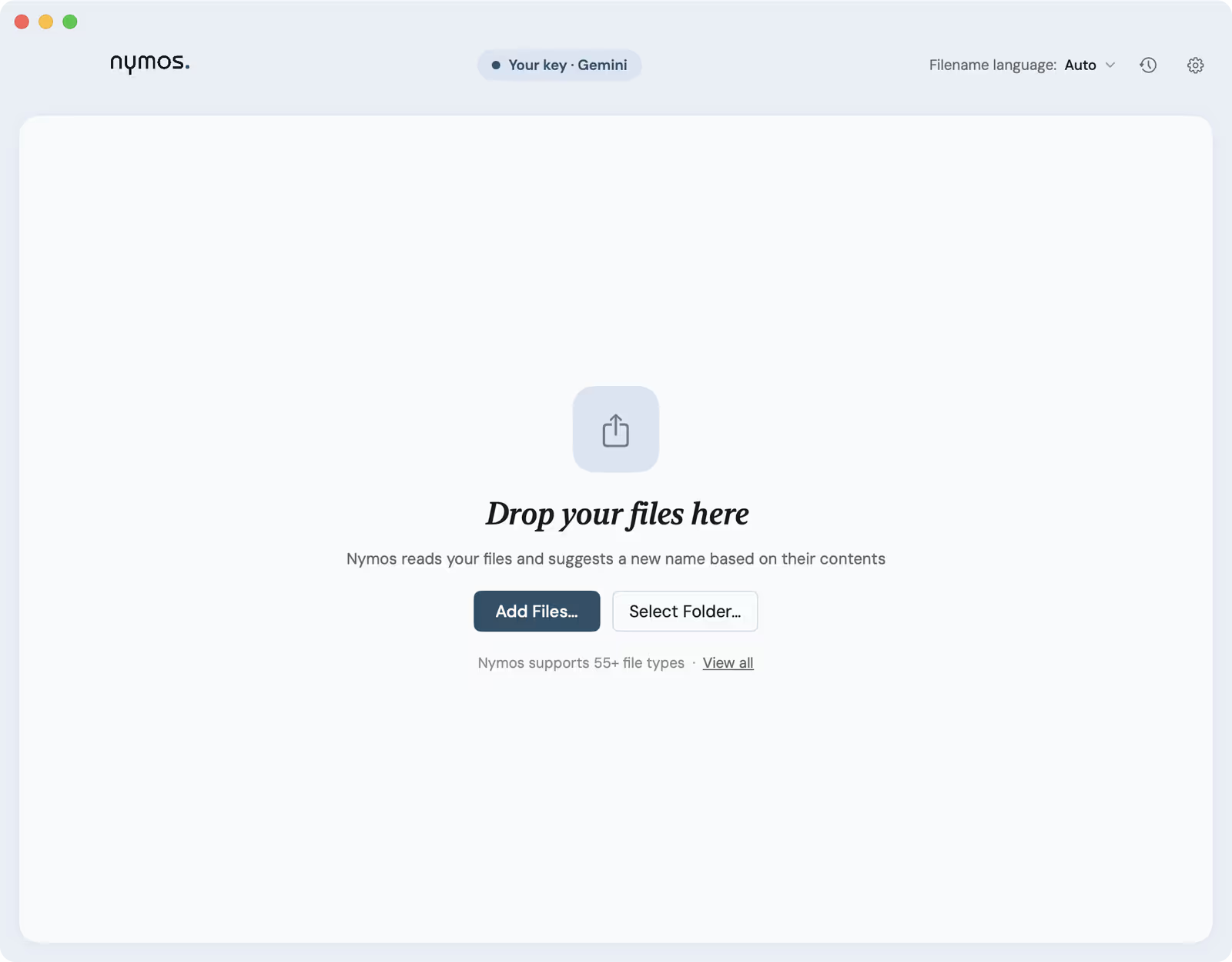
The pill at the top of the main window always names the provider your renames are running on, so you never have to guess which mode is active.
Where you stand
About shows the same thing in more detail: which mode is active, which provider and model renames run on, and, if a subscription is still winding down, the date your key takes over.
Privacy notes
- Your key is stored on your Mac. It is sent to the provider you chose and to nobody else, and it never reaches our servers.
- In this mode file content goes straight from your Mac to your provider, under your own account and that provider's terms. Our servers are not in the path at all, so we have no record that the rename happened.
- Only extracted text, or the image for visual analysis, is sent. The files themselves are never uploaded anywhere.
- The full per-mode breakdown is on Privacy & your data.
Common issues
- Renaming is paused until a key is saved: no key is stored for the selected provider yet. Paste one and save.
- Renames fail right after adding a key: most often the provider account has no billing credit. Check the provider's billing page.
- Rate-limit errors on a big batch: new provider accounts often start with low limits that rise after a few days of use. nymos waits out the limit and resumes on its own, and you can cancel the wait if you would rather run a smaller batch.
- Images are skipped: the model you picked is text-only. Choose one that reads images.
- A custom endpoint skips images even though the model can see: nymos has no way to verify a typed model id, so it assumes no. Connect that provider directly if you need pictures read.
- For anything else, see Troubleshooting.