Quick start
The fastest way to understand nymos is to run one small batch. Twenty files from your Downloads folder is plenty: enough variety to see what it does, small enough to read every suggestion.
Run your first batch
- Add files. drag them onto the window, or use the buttons to pick files or a whole folder. PDFs, Word, Excel, PowerPoint, images, text, Markdown and CSV all work, mixed together.
- Pick a template. choose a template for the shape of the name, or leave the default and let the model decide it. Names come out in each file's own language by default; set one language for the batch if you would rather.
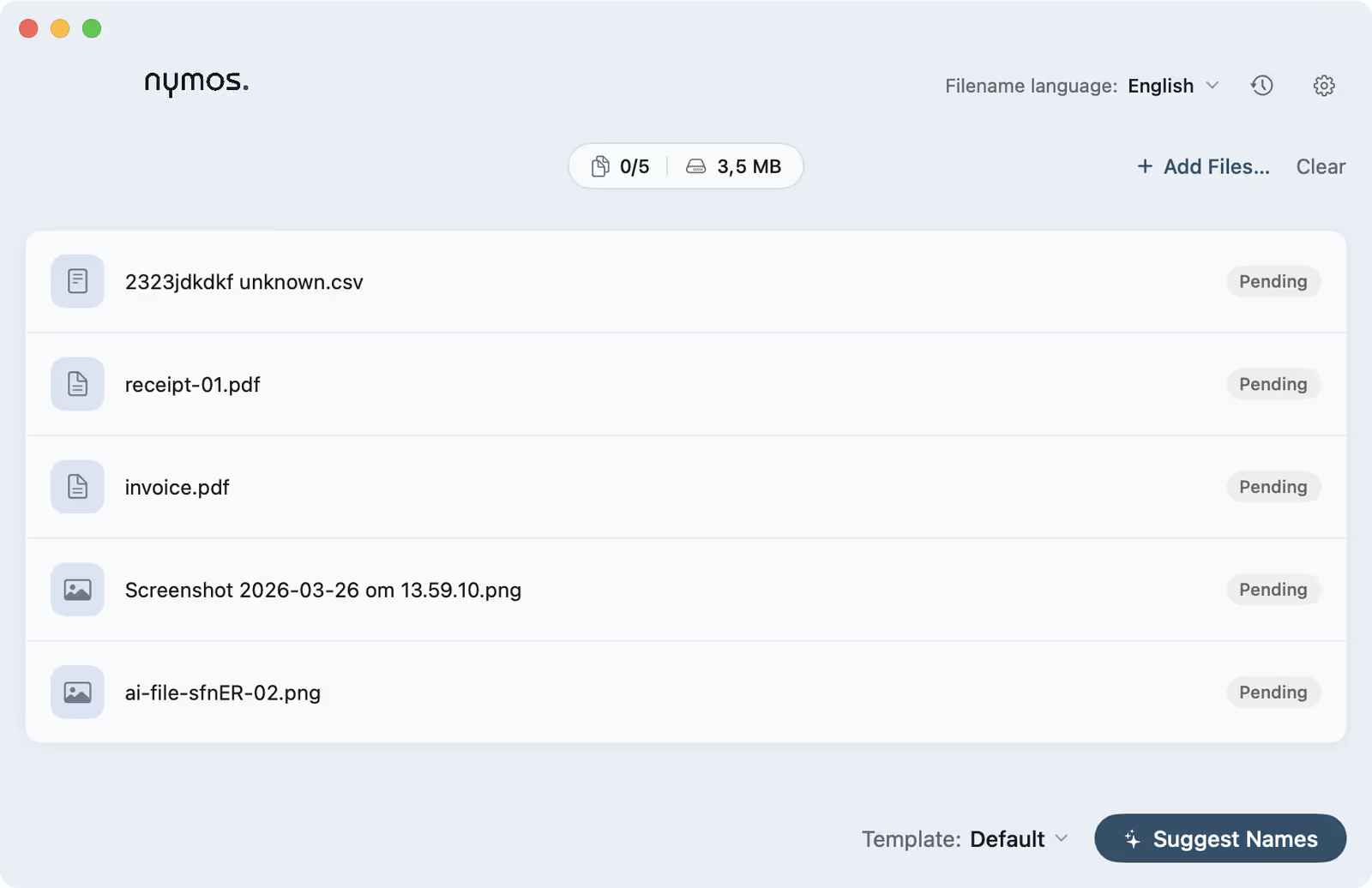
- Suggest names. click Suggest names. nymos reads each file and proposes a name. Files run several at a time, so even a large folder is done in seconds.
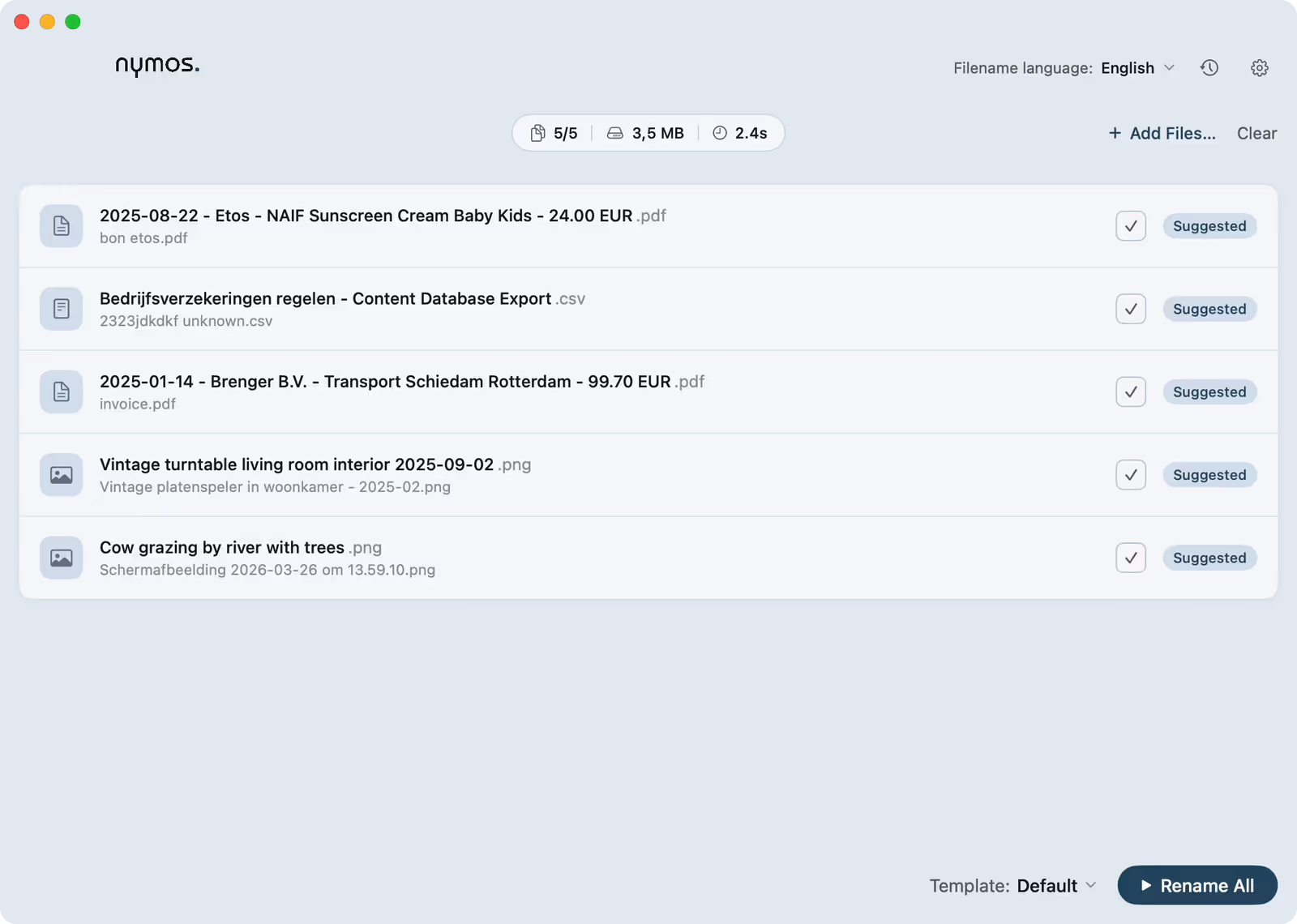
- Review. read down the list. Edit any name inline, or ask for a fresh suggestion on a file that missed.
- Apply. accept one file with its Rename button, or apply the whole batch with Rename All.
Nothing is lost
Renaming never overwrites: if a name is already taken, nymos numbers it Finder-style, like "Invoice 2.pdf". Every applied rename lands in the history, where the original name is one click away.
Then automate
Once a folder's naming feels right, point a watch folder at it so new files are suggested the moment they arrive. You still approve them: the watch folder proposes, it never renames on its own.
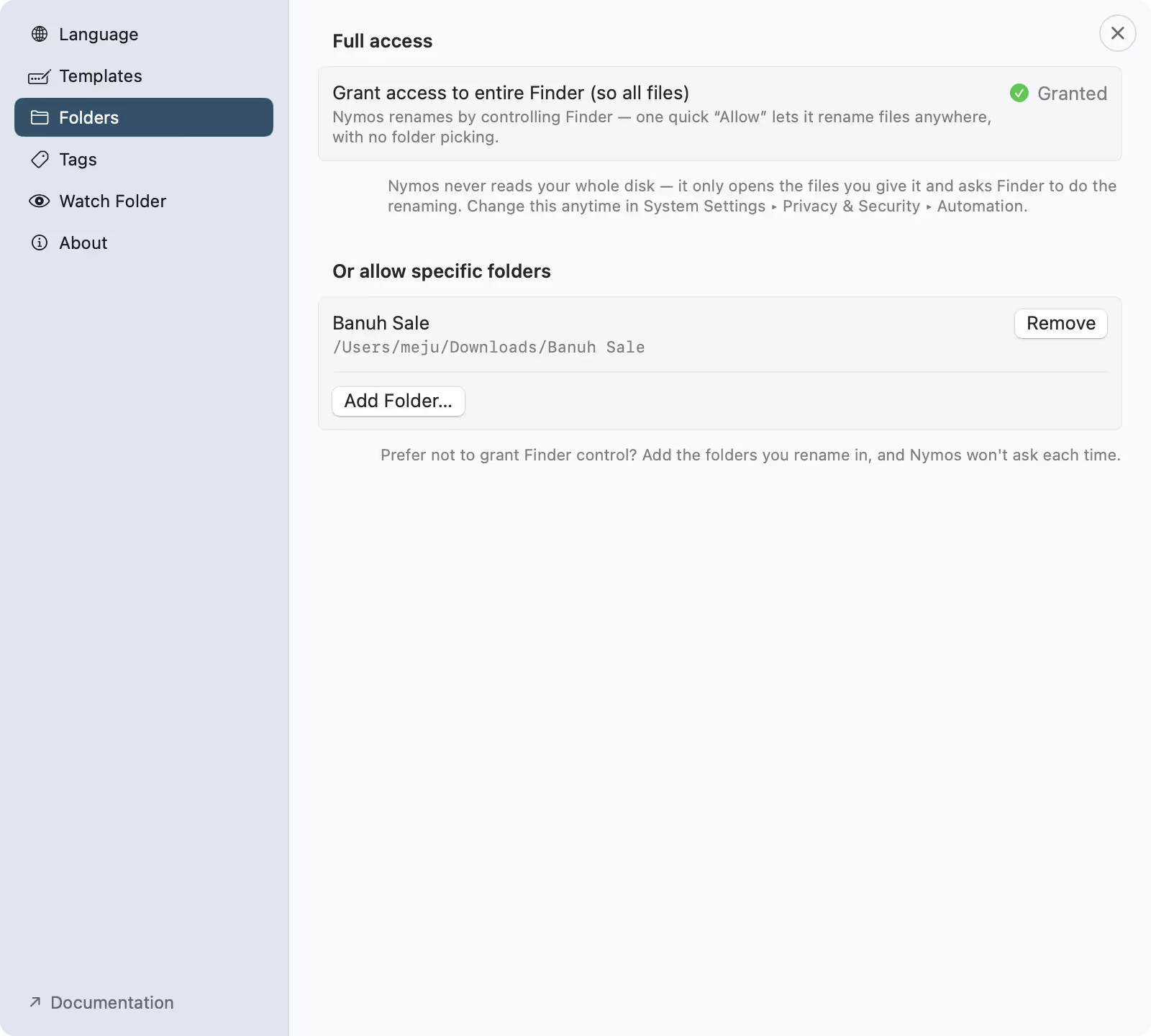
Granting access
The first time nymos touches a folder, macOS asks for permission. Grant full access once and it can read and rename across your folders; you can review or change it any time in macOS Settings.
Watch it read
Suggest Names runs the batch. Files are read a few at a time, so even a large folder is done in seconds.
The review step
Suggestions wait for you. Nothing touches the disk until you approve it.