

Key insights
- Your PDFs split into two kinds, and only one of them holds text that a renaming tool can read.
- One Cmd+F search in Preview tells you which kind you have, because a scan returns no result for a word in plain view.
- Batch tools read the filename, the path and the metadata dictionary, and your vendor name and invoice number sit in none of those.
- Acrobat's Action Wizard cannot rename a file, so a 400-file run leaves you with 800 files and the originals untouched.
- Nymos closes these gaps in one pass: it reads the page itself, runs OCR on scans, and proposes a name you review before applying, whatever the sender or the folder size.
What renaming a PDF by content actually means
Renaming a PDF by content means reading the text on the page and building the filename from what you find there. The vendor, the date, the document number. Not from the name the file already carries, because that name almost never tells you anything.
You know the folder. It holds scan_0034.pdf, invoice (3).pdf and Document-2026-03-14.pdf, and every one of those names was assigned by a scanner, a browser or a supplier portal that had no idea what the document was. Do you know what is in scan_0034.pdf without opening it? Neither does your computer.
Take one file through the process. Before, it is scan_0034.pdf. After, it is 2026-03-14_Acme-Supplies_INV-4471.pdf. Three facts were pulled off the page and dropped into a pattern you set once.
2026-03-14comes from the date printed on the invoice, not the date the file was created or downloaded.Acme-Suppliescomes from the vendor name in the letterhead.INV-4471comes from the invoice number, usually the line labeled invoice, reference or document number.
One thing to separate before you go further. Renaming the file changes what your Mac or PC calls it on disk, which is the operation this article covers. Changing the title stored inside the PDF is a different job. If you have a single file in front of you rather than a folder, renaming a single PDF by hand, including the document title is the faster route.
The two kinds of PDF you might be holding
Every method below depends on which of two kinds of PDF you have, and most people never check. A native PDF carries a text layer. A scanned PDF does not. Pick the wrong method for what you are holding and the tool returns blank names across the whole batch.
Native PDFs, where the text is already there
A native PDF was exported from something that already held text. Word, Pages, a browser print dialog, an accounting system generating an invoice. Each character is stored as a glyph, which means the text layer, the invisible layer of selectable characters sitting behind the page image, is real data you can read out. Does a supplier email you invoices straight from their billing software? Those are native.
Scanned PDFs, where the page is a picture
A scanned PDF is a photograph wearing a PDF wrapper. It came off a flatbed scanner, a phone scanning app, a fax machine, or someone printing an image to PDF. No text exists anywhere in the file, only pixels arranged in the shape of letters. You can read it perfectly well. Your computer cannot, not until OCR has run across it.
How to tell which one you have in 5 seconds
Open the file in Preview and press Cmd+F. Type a word you can clearly see on the page, something from the letterhead, then press Return. If Preview highlights it, the text layer is there and you have a native PDF. If Preview finds nothing while the word sits in plain view, the page is an image and you have a scan.
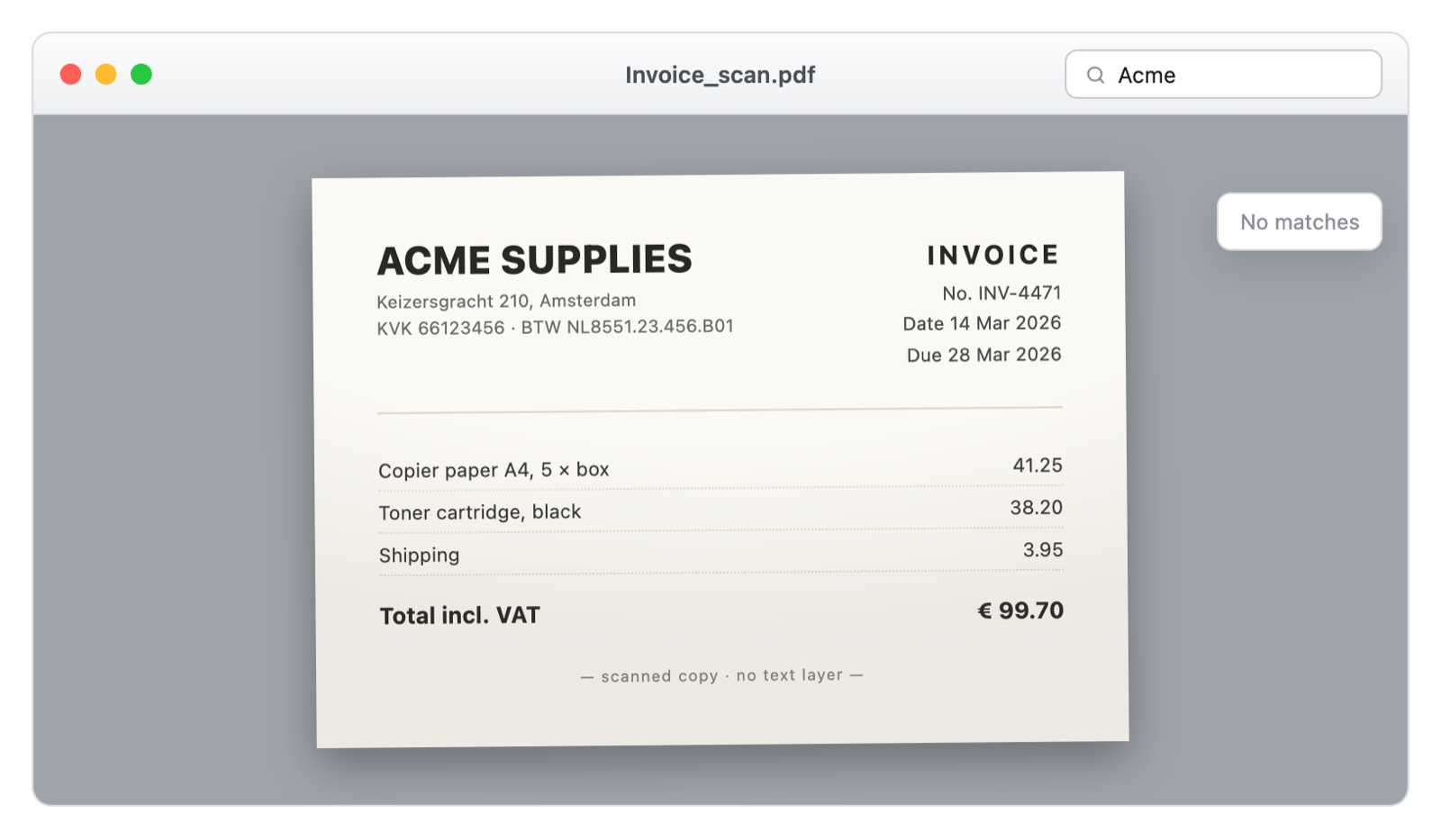
Drag your cursor across a single word. If you can select just that word, the text layer is there. If your cursor draws a rectangle over the whole page instead, you are looking at an image.
That five-second test decides everything downstream, so run it before you commit to a method. Here is what each kind of file gives you and what breaks.
| What you have | How to identify it | What a tool can read from it | What breaks |
|---|---|---|---|
| Native PDF | Cmd+F finds a word you can see. You can select one word with the cursor. | The full text of every page, plus whatever sits in the metadata dictionary. | Little. Multi-column layouts and dense tables can scramble the reading order. |
| Scanned PDF | Cmd+F finds nothing. Selecting text draws a box across the whole page. | Nothing at all. Text extraction returns an empty result. | Every text-based method quietly produces blank or identical names. |
| Scanned PDF after OCR | Cmd+F starts finding words. In Preview, the Embed Text option is gone. | The recognized text, at whatever accuracy the scan quality allowed. | Faint scans, stamps and handwriting. Digits are the usual casualty. |
Renaming PDFs without a dedicated tool
Two free routes exist and both genuinely work, up to a point. One runs inside Adobe Acrobat Pro, the other from your command line. Neither is quick to set up, and each carries a specific failure that will catch you out.
Adobe Acrobat and the Action Wizard
Acrobat Pro can run a script across a folder of PDFs through its Action Wizard. The common recipe pulls the PDF's internal document title and writes it into the filename. Here is the sequence you follow, tested in Acrobat Pro on macOS 26.
- Open the Action Wizard. Find it in the Tools pane and choose New Action.
- Point it at a folder. Under Files to be Processed, click Add Files, then Add Folder, then pick the folder holding your PDFs.
- Add the script step. From the More Tools group, add Execute JavaScript to the action list on the right.
- Paste the one-liner. Click Specify Settings and enter
this.saveAs(this.path.replace(this.documentFileName, this.info.Title + ".pdf")) - Save and run. Name the action, save it, then select it from the Actions List and choose your folder.
Run that and every file takes its name from its document title. Useful, as long as those titles are correct. On invoices reaching you from sixty different senders they rarely are, because the title field is often left blank or set to the name of the sender's template. There is a larger catch waiting for you underneath.
The saveAs method documented in the Acrobat JavaScript Doc object reference writes a copy under a new name. It leaves the original alone. Run this across 400 files and you end up with 800 files, the original 400 still named exactly as they were. Send the copies to a separate output folder or you will lose track of which is which.
The command line with pdftotext
The other free route reads the page text directly. pdftotext ships with Poppler and installs on a Mac with brew install poppler. Point it at a PDF and it hands back the text layer as plain text, which you then filter down to the piece you want.
pdftotext -raw scan_0034.pdf - | grep -A 1 "^VAT:" | tail -n 1The -raw flag drops the layout reconstruction and returns text in reading order, which makes the output more predictable to filter. You anchor the search on a label that sits in a fixed place, VAT or Payment Reference or Invoice No, then take the line after it. Wrap that in a shell loop over the folder and you have a batch renamer.
It works for one sender. Every supplier lays out their invoices differently, so the anchor you built for the first vendor returns an empty string for the second. A folder from sixty vendors means writing and testing sixty variations, and you find out which ones failed only after they have run.
Why both methods stop at around 50 files
Setup time is the first wall. Building and testing one Acrobat action or one shell script costs you 30 to 60 minutes if you already know the tools. So when is that worth it? When every document in the folder comes from the same sender in the same layout. A mixed folder pays none of it back.
The manual alternative has its own arithmetic. 40 PDFs at 20 seconds each of opening, reading and typing is a little over 13 minutes, and you will get through it. 400 PDFs is more than 2 hours of unbroken attention, and your error rate climbs long before the end.
Both routes are PDF-only as well. If your folder mixes PDFs with images and Word documents, batch renaming other file types with built-in OS tools is a separate job with separate tools.
Where pattern-based renaming runs out
Everything above shares one limit, and it belongs to no particular tool. It comes from where a PDF stores your data.
A PDF filename and a PDF's contents are stored in completely different places. Batch tools read the filename, the file path, and the metadata dictionary. The vendor name, the invoice number, and the document date usually appear in none of those. They exist only as text drawn on the page, or, in a scanned document, as pixels that are not text at all.
The metadata dictionary is the small set of properties a PDF carries about itself, things like title, author and creation date. Your supplier's system filled those in, left them empty, or set the title to the template filename. None of it describes the invoice you are trying to find. For the full version of this distinction, what separates pattern-based renaming from content-based renaming covers it across every tool class.
Renaming by extracted content
Content-based renaming reverses the order of operations. Rather than reshaping the name you already have, the tool opens the document, reads it, works out what it is looking at, and writes a name from what it found. Your old filename is an input to nothing.
What gets extracted
Four facts carry almost all the value on business documents. The vendor or counterparty, the date printed on the document, the document number, and the document type. None of the four is guessable from scan_0034.pdf, which is the entire reason that file is useless to you in a folder listing.
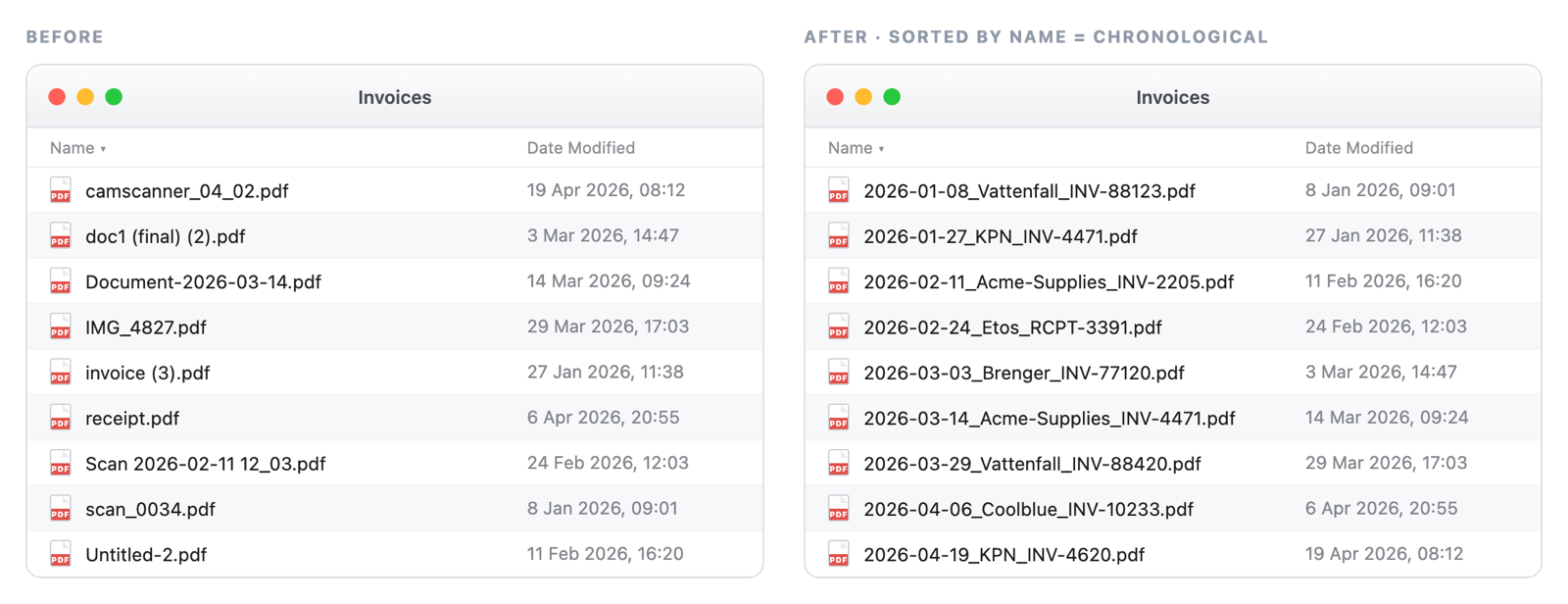
The document date matters more than it first appears. A file you downloaded in June can be an invoice dated March, so sorting your folder by date modified sorts by the download rather than the document. That single mismatch is why chronological folders drift out of order.
Building the output pattern
You decide the shape once and every file follows it. A pattern of date, then vendor, then document number produces 2026-03-14_Acme-Supplies_INV-4471.pdf, and because the year leads, your folder sorts chronologically with no folder structure at all.
Put the field you search by first. If you hunt by vendor more often than by date, lead with the vendor instead. Once the names are consistent, filing a backlog of invoices and receipts turns into a sorting job rather than a reading job.
Why review before apply matters
Extraction is a reading task, and reading tasks carry an error rate. A tool that renames 400 files the instant you press go has handed you 400 outcomes you never checked, and finding the wrong ones later means opening files one at a time again. Review before apply puts the proposed name next to the extracted fields for every file, so you scan a list instead of a folder.
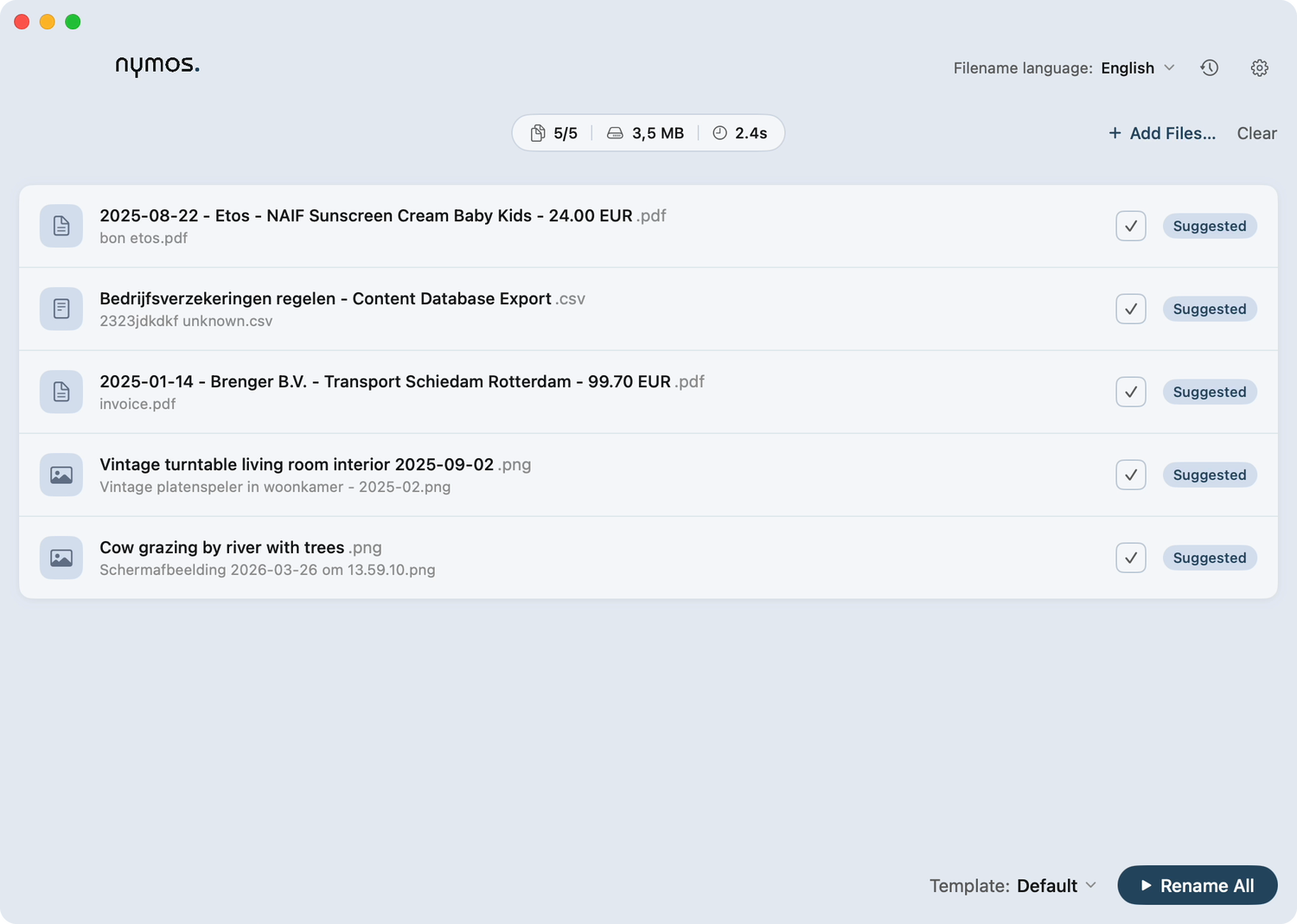
Collisions are the case nobody warns you about. Two invoices from one vendor on one date resolve to the same output name, and a tool that applies without asking will either overwrite one of them or append a counter you did not choose. Seeing that pair side by side before anything is written to disk is the only reliable way to catch it.
Undo and what happens when it gets one wrong
Some documents will not read cleanly. A faint scan, a handwritten receipt, a statement where the total sits in a column the reader misreads. What happens to those? You flag them, fix the handful by hand, and keep the rest.
Undo carries the same weight for you. A rename you can reverse in one step is a rename you can afford to try, which changes how much checking you feel you need to do before you commit.
Scanned PDFs and the OCR step
If your Cmd+F test came back empty, one step comes before any renaming. OCR reads the pixels and writes a text layer into the file, and only then is there anything for a renamer to extract.
Preview has handled this since macOS Sonoma 14. Open the scan, choose File and then Export, and select Embed Text. Preview recognizes the text and writes it into the PDF. The option appears only when no text has been recognized in the document already, so its presence tells you the file is a scan.
Accuracy tracks scan quality closely. A clean 300 dpi flatbed scan reads almost perfectly. A phone photo shot at an angle in poor light loses digits, and digits are exactly what an invoice number is made of. Check the numeric fields first when you review a batch of scans.
A renamer that runs OCR itself saves you the export step and keeps the whole batch in one pass. What it cannot do is improve the scan. Feed it a bad photograph and you get a bad reading, which is one more reason to look at the proposed names before they are applied.
FAQ
Can you rename a PDF based on its contents automatically?
Yes, but not with the rename function built into your operating system, because Finder and File Explorer never open the file. You need something that extracts text from the page and maps it into a naming pattern. That is either a script you write yourself or a renamer built for the job.
Does renaming a PDF change its contents?
No. Changing the filename touches the directory entry, not the bytes of the document, so your pages, signatures and form fields stay exactly as they were. The one exception is the Acrobat script route, which saves a new copy rather than renaming, so you finish with two files instead of one.
Can you rename scanned PDFs that have no text?
Only after OCR has run. Until then no text exists in the file for any tool to read, which is why text-based scripts return empty names across your whole folder of scans. Run OCR first, or pick a renamer that handles it inside the same pass.
How many PDFs can you rename at once?
There is no technical ceiling worth worrying about, and folders of several thousand files process fine. Your real limit is how many proposed names you are willing to check before applying them. Sorting the review list by confidence keeps that manageable at any volume.
Picking the route that fits your folder
Two answers decide it, and you now have both. Whether your PDFs carry a text layer, which Cmd+F settles in seconds, and whether they share a layout. Same sender and same layout across the folder makes an Acrobat action or a pdftotext script worth the setup hour. A folder from dozens of senders does not, because the anchor you write for one invoice will miss the next one.
Still deciding whether this fits how you work? The related guides below go deeper, or you can see how Nymos handles it.